
Track Zero Search Results In Google Analytics
This blog explains how you can track your search results in Google Analytics with your own search engine, as well as how easy it is with Cludo.

Cludo

Key takeaways
- Searches with zero results show you exactly what visitors want but can’t find on your site.
- In Google Analytics 4 (GA4), turn on site search in Enhanced measurement to see what people search for.
- To track zero results with your own search engine, send a custom GA4 event from your no-results page.
- With Cludo, it’s one toggle: Cludo sends the search term and result count to GA4 for you.
Congratulations! If you’re here, you’ve just set up a new search tool, or you’re about to connect it to your website for the first time. You’ve made it much easier for visitors to navigate your website.
But here comes the next step: do you know what people are searching for, and finding? Or worse, what they’re not finding?
Why site search analytics matter
Search is often a visitor’s last resort when they can’t find what they’re looking for. If you don’t have what they’re searching for, they’re likely to get frustrated and leave your website, never to return.
But if you track what visitors search for, and which results perform best, you can use that data to improve your site and turn more visitors into customers. Here’s what that can look like:
Find a gap in your offering
You sell women’s and men’s shoes. Last month, 100 people searched for kids’ shoes.
kids shoes 0 resultsFix the words visitors use
Your online shop sells Red Bull, but people searching “energy drink” find nothing.
energy drink 0 resultsWell, enough talk. Let’s look at how to track zero search results in Google Analytics with your own search engine, and then how easy it is with Cludo.
Step 1: Turn on site search in Google Analytics 4
First, turn on site search tracking in GA4. Log in to your Google Analytics account and follow these steps:
- Open Admin from the bottom-left menu.AdminData collection and modificationData streams
- Choose your web data stream, the one for the website you want to track.
- Open Enhanced measurement settings by clicking the gear icon.
- Turn on Site search, then click Show advanced settings.
- Add your search query parameter if it isn’t one of GA4’s defaults (
q,s,search,query,keyword), then save.
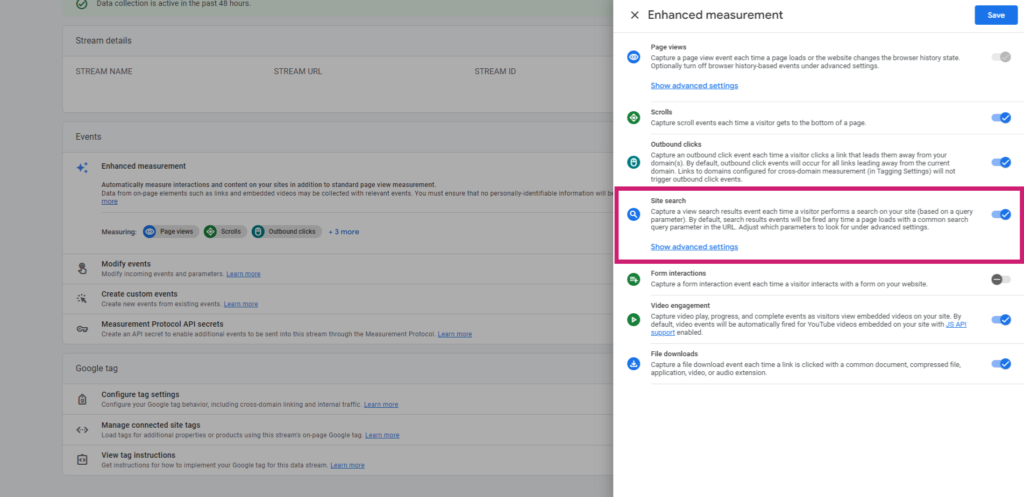
Your query parameter is the part of your search URL that holds what the visitor typed. For example, in yoursite.com/search?q=pricing, the parameter is q.
Once site search is on, GA4 records a view_search_results event with the visitor’s search term every time someone searches. You’ll find it under Reports › Engagement › Events.
Step 2: Track zero search results
Now that GA4 knows what people search for, we just need to tell it when a search doesn’t return any results.
Using older tracking code? Code that uses ga('send', 'event', ...) was written for Universal Analytics, which Google has shut down. It no longer sends data. Use the GA4 version below instead.
The way to track zero results in GA4 is with a custom event. Usually, when a visitor searches and gets no results, your search page shows a message like “Sorry, no results were found.” Find the element that holds that message, and give it an ID:
<h2 id="zeroSearchResultsContainer">Sorry, no results were found</h2>Add an ID to the element that holds your “no results” message.
Then add a short script to your search results page. If the no-results message is on the page, the script grabs the search term from the URL and sends it to GA4 as an event:
// Add to your search results page, after the GA4 tag
document.addEventListener('DOMContentLoaded', function () {
  // 1. Only run when the "no results" message is on the page
  if (!document.getElementById('zeroSearchResultsContainer')) return;

  // 2. Get the search term from the URL
  var param = 'q'; // change to your search query parameter
  var query = location.search || location.hash.split('?')[1] || '';
  var term = new URLSearchParams(query).get(param) || '(blank)';

  // 3. Send a GA4 event with the search term
  gtag('event', 'search_no_results', { no_results_term: term });
});
Using Google Tag Manager instead? Replace the last line with dataLayer.push({ event: 'search_no_results', no_results_term: term }); and send it to GA4 with a GA4 event tag.
Notice that we’re looking for an element with the ID zeroSearchResultsContainer, and a URL parameter called q. If the element is on the page, the search had no results, so we send an event to Google Analytics. The script also checks the part of the URL after a #, since some search tools put the query there.
Finally, tell GA4 about your new data so you can see it in reports:
- Create a custom dimension for the search term, with the scope set to Event and the event parameter
no_results_term.AdminData displayCustom definitions - Build a report in Explore: add your new dimension and the Event count metric, and filter by the event name
search_no_results.ExploreFree form
That’s it! You can now see every search that produces zero results, and how often it happens. Learn more about events in Google’s GA4 events guide.
How many of your searches come up empty?
Get an audit of how people search on your site, and where they’re giving up.
Google Analytics integration for Cludo
If you use Cludo, you already have a detailed search analytics dashboard, including searches without results. If you also want your search data in Google Analytics, it doesn’t get much easier:
Your own search engine
Several steps, plus code
- Turn on site search in GA4
- Add an ID to your no-results message
- Write and maintain a tracking script
- Set up a custom dimension and report
With Cludo
One toggle
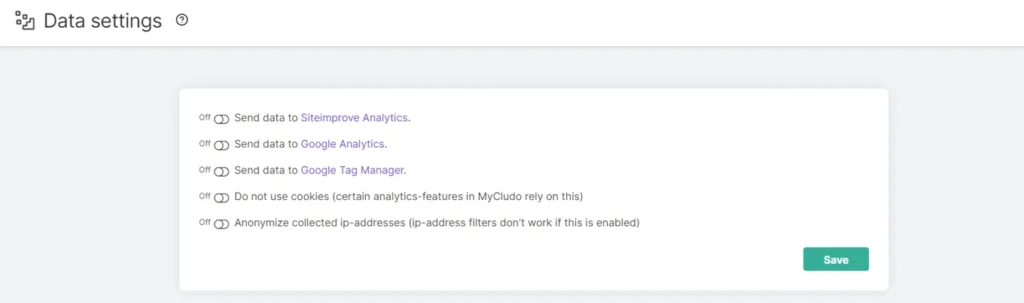
- Turn on “Send data to Google Analytics”
- Cludo sends the search term, page, and result count
- Zero results show up as a result count of 0
- Turn on the integration in MyCludo by switching on Send data to Google Analytics, then save.ConfigurationData settings
- Add custom dimensions in GA4 for the parameters Cludo sends, with the scope set to Event:
q_cludoResultCount(number of results),q_cludoPage(results page), and any facets, likeq_cludoCategory. - See your searches under Reports › Engagement › Events ›
view_search_results. To find zero-result searches, filter whereq_cludoResultCountis 0.
Prefer Google Tag Manager? You can send Cludo’s search data through GTM instead. Find the full setup in the Cludo Help Center.
See what your visitors can’t find
Book a demo and see Cludo’s search analytics on your own website.
Related Posts
10 Benefits of Adding Search to Your Website
When looking to optimize the user experience throughout your website, an intelligent search function…
How to Build a 404 Page to Stop Losing Visitors
404 pages should use data to create a better customer experience that retains site visitors who land on broken links, and increases…
Search vs. navigate vs. ask: How do people behave on websites?
Navigating and searching are both important ways of finding desirable content. How important is the search box…
